

Windows Server 2022 22H2 Build 225110 AIO x64 Multilingual-35 PreActivated May 2022
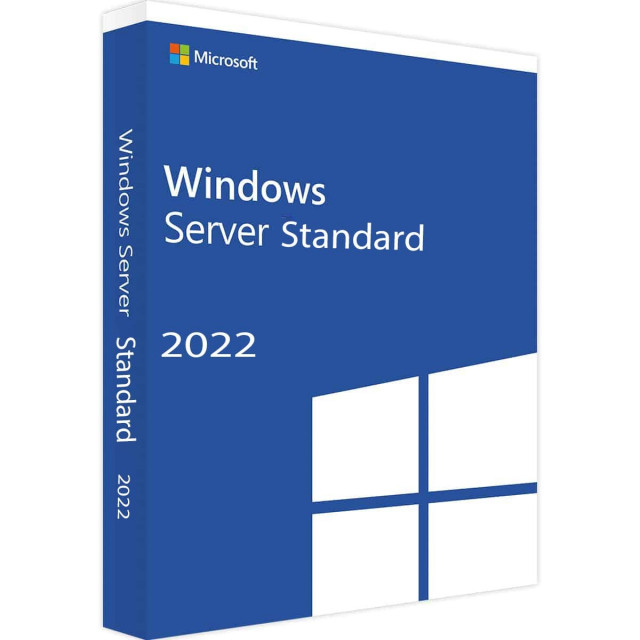
iNFO:
Medicine included
size:4.4 GB
format:rar/exe/iso
4 In 1 | 35 Languages | Untouched | PreActivated
Editions Included:
– Windows Server 2022 Standard x64
– Windows Server 2022 Standard (Desktop Experience) x64
– Windows Server 2022 Datacenter x64
– Windows Server 2022 Datacenter (Desktop Experience) x64
Languages:
– Arabic (Saudi Arabia)
– Bulgarian (Bulgaria)
– Czech (Czech Republic)
– Danish (Denmark)
– German (Germany)
– Greek (Greece)
– English (United States)
– Spanish (Spain)
– Estonian (Estonia)
– Finnish (Finland)
– French (France)
– Hebrew (Israel)
– Croatian (Croatia)
– Hungarian (Hungary)
– Italian (Italy)
– Japanese (Japan)
– Korean (Korea)
– Lithuanian (Lithuania)
– Latvian (Latvia)
– Norwegian (Norway)
– Dutch (Netherlands)
– Polish (Poland)
– Portuguese (Brazil)
– Portuguese (Portugal)
– Romanian (Romania)
– Russian (Russia)
– Slovak (Slovakia)
– Slovenian (Slovenia)
– Serbian (Latin, Serbia)
– Swedish (Sweden)
– Thai (Thailand)
– Turkish (Turkey)
– Ukrainian (Ukraine)
– Chinese (Simplified, China)
– Chinese (Taiwan)
Operating System:
– Processor: 1 gigahertz (GHz) or faster.
– RAM: 2 gigabyte (GB).
– Free space on hard disk: 32 gigabytes (GB).
Install Notes:
– Starting installer in PC (via USB)
– Follow the steps given below:
– Download the Windows ISO image file.
– Install a USB bootable creation software (such as Rufus) on your Windows computer.
– Plug in a USB flash drive (at least 8GB of free space) to your computer.
– Open the USB bootable creation software, and select the ISO image file of Windows, and start the process.
– Plug the bootable USB into a system where you want to install Windows.
– Restart the computer.
– Press the boot device menu key and select USB to boot first.
– Select USB device and start the Windows installer.
***************************************************************
Hinweise zur Installation:
– Starten des Installationsprogramms auf dem PC (über USB)
– Befolgen Sie die unten angegebenen Schritte:
– Laden Sie die Windows-ISO-Image-Datei herunter.
– Installieren Sie eine Software zur Erstellung von USB-Startdateien (z. B. Rufus) auf Ihrem Windows-Computer.
– Schließen Sie ein USB-Flash-Laufwerk (mit mindestens 8 GB freiem Speicherplatz) an Ihren Computer an.
– Öffnen Sie die Software zur Erstellung von USB-Startdateien, wählen Sie die ISO-Image-Datei von Windows aus, und starten Sie den Vorgang.
– Stecken Sie den bootfähigen USB-Stick in ein System, auf dem Sie Windows installieren möchten.
– Starten Sie den Computer neu.
– Drücken Sie die Menütaste für das Boot-Gerät und wählen Sie USB, um zuerst zu booten.
– Wählen Sie das USB-Gerät aus und starten Sie das Windows-Installationsprogramm.
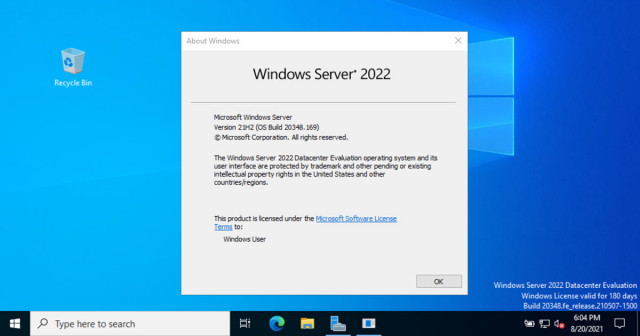
Screenshots
https://nitroflare.com/view/FA5D1AE22649E9E/CKN-SOFT-WS2022PRE.ACTIVATMAY22.part1.rar
https://nitroflare.com/view/3FDFE6170DA0566/CKN-SOFT-WS2022PRE.ACTIVATMAY22.part2.rar
https://nitroflare.com/view/EEAB02B5FD9EB40/CKN-SOFT-WS2022PRE.ACTIVATMAY22.part3.rar
https://nitroflare.com/view/F7D3CA0DD57B925/CKN-SOFT-WS2022PRE.ACTIVATMAY22.part4.rar


https://rapidgator.net/file/1ea78a09d85a11e10ac0798458a7b7dd
https://rapidgator.net/file/d095b63c58efca396898afe5417fb945
https://rapidgator.net/file/baa4b02e46629e68508e04f8b15f1b4f
https://rapidgator.net/file/067c3e1c1f8de1aa9c47205646653580